Customer portal
Client Portal Software Built Into Your Books
Give each customer a private sign-in where they see what they owe, download invoice and quote PDFs, and accept or decline quotes. It reads straight from your PilotLedger books, so it is always up to date.
Free plan available · No credit card required
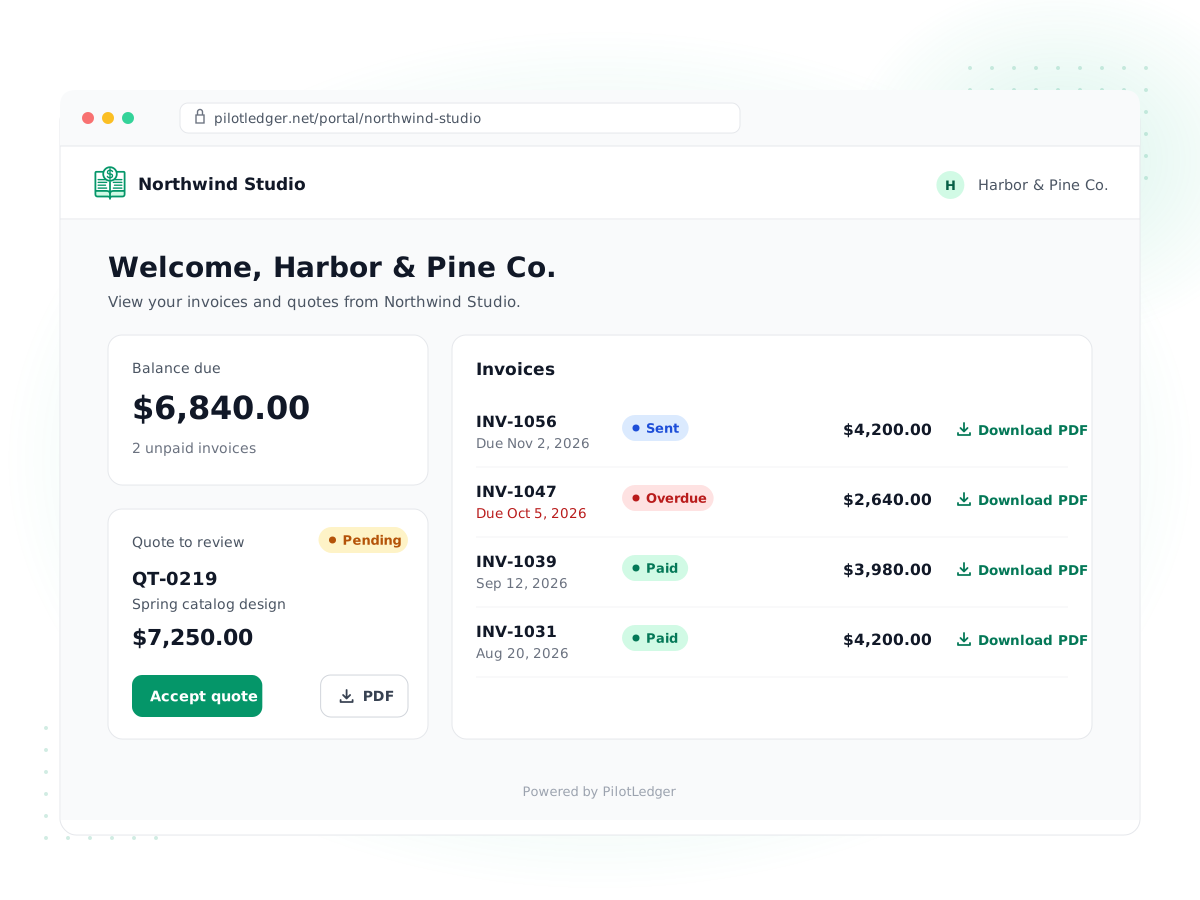
One balance, at a glance
Customers see the total they owe you, what is overdue and when the next payment is due as soon as they sign in.
Every invoice and quote
Unpaid, paid and cancelled invoices and all quotes are listed with their numbers, dates, amounts and status.
PDF view and download
Customers open or download a PDF of any invoice or quote to print, file or forward to their accounts team.
Accept or decline quotes
Clients accept a quote with one click or decline it with an optional reason, and its status updates in your account.
Your company, front and center
The portal shows your company name, logo and contact email on its own web address, with a short link to share.
Private, per-customer access
Each customer signs in with their email and a password and only ever sees their own documents.
How it works
- 1
Get your portal link
Open Settings, then Customer portal. PilotLedger creates a portal address from your company name that you can copy and share.
- 2
Give a customer access
On the customer record, tick Enable portal access and set a password. Send them the link and their sign-in details.
- 3
Send invoices and quotes as usual
Anything you issue to that customer appears in their portal automatically. Drafts stay private until you send them.
- 4
See their replies
When a customer accepts a quote in the portal, it is marked accepted in PilotLedger, ready to convert to an invoice.
Client portal software gives your customers one place to find their invoices and quotes instead of digging through email. PilotLedger includes a customer portal as part of your accounting, so there is nothing extra to set up or sync. Each customer gets a private sign-in where they can see what they owe you, download PDFs and reply to quotes, and everything they see comes straight from the same books your invoicing uses.
For a small business, that means fewer "can you resend that invoice?" emails and quicker yes-or-no answers on quotes.
Why a client portal for small business matters
Email works fine for one invoice. It gets messy when a client has six invoices over a year, two partial payments and a quote they meant to approve last week. Their accounts team asks for copies, someone forwards the wrong version, and you spend time chasing paperwork instead of payment.
A client portal fixes that by giving the customer a single, current view of their account. When you record a payment, the balance in the portal changes. When you send a new invoice, it appears there. There is no separate system to update and no chance of the portal showing an old number.
What customers can do in the PilotLedger portal
| In the portal, your customer can | Details |
|---|---|
| See their balance | The total they owe you, the overdue amount and number of overdue invoices, and the next due date |
| Review unpaid invoices | Number, issue or due date, balance remaining, and the original total on partly paid invoices |
| Look up past invoices | Paid and cancelled invoices stay listed for their records |
| Open and download PDFs | View any invoice or quote as a PDF, or download it to save or forward |
| Review quotes | All quotes with their status and how long each is valid |
| Accept or decline a quote | Accept with one click, or decline with an optional reason you can read |
If a customer is billed in another currency through multi-currency, amounts in the portal show in that currency, and balances in more than one currency are listed separately.
A customer self-service portal for quotes
Quotes are where the portal saves the most time. When you send a quote from quotes and estimates, the customer sees a notice on their portal home that a quote is waiting for a reply. They open it, read the line items, download the PDF if they need internal approval, and press Accept. In your account the quote is marked accepted straight away, and you can convert it to an invoice in a click.
If they decline, they can add a short reason, such as "over budget this quarter" or "went with a smaller scope". The reason is added to the quote's notes, so you know why without a follow-up call. Expired quotes, and quotes that have already been answered, cannot be accepted again, which avoids confusion over old pricing.
A day in the life of a portal customer
Picture a property manager who uses your cleaning company across four buildings. Each month you send four invoices, and their finance team pays them in one batch. Before the portal, they emailed every quarter asking which invoices were still open, and you replied with a list and a pile of PDF attachments.
With the portal, they sign in, see "You owe $3,840" with one invoice marked overdue, open that invoice, download the PDF for their approval process, and pay it. When you record the payment, their balance drops to zero and the invoice moves to the paid list. Next quarter, when you quote for a deep clean, they get the quote in the same place and accept it without a meeting. You spend that time on the job, not on admin.
Setting up your client portal software in five minutes
- Go to Settings and open Customer portal. Copy your portal link; PilotLedger generates it from your company name.
- Make sure your company profile has your logo and contact email, since the portal shows both.
- Open a customer, tick Enable portal access and set a password.
- Send the customer the link, their sign-in email and the password, along with a short note on what they will find there.
- Sign in yourself once with a test customer to see exactly what your clients see.
Start with your most active customers. The ones who ask for copies most often get the most value from it.
Portal or email: when each makes sense
You do not have to choose one. Invoices and quotes can still be emailed with a PDF attached, using your editable email templates, and payment reminders still go out by email. The portal works alongside that as the place customers go back to. Email is best for getting a new document in front of someone quickly. The portal is best for anything a customer needs to look up later, like an old invoice, the current balance or a quote they have not answered yet.
How access and security work
Every company gets its own portal address based on its name. Access is per customer: you switch it on from the customer's record and set a password for them, then share the link. Customers sign in with their email address and that password. Passwords are stored hashed with bcrypt, sessions are tracked on the server, and a customer only ever sees documents issued to them. Draft invoices and quotes never appear.
You can turn portal access off for any customer at any time from their record. The portal pages are not indexed by search engines.
Which plans include the customer portal
The customer portal is included on the Starter, Growth and Business plans, from $14.99 per month on Starter. It is not part of the Free plan. See the full breakdown on the pricing page, or compare what you get against bigger suites in our QuickBooks alternative guide.
What the portal does not do yet
To set expectations honestly: customers cannot pay invoices by card or bank transfer inside the portal, because PilotLedger does not process online payments. Record payments as they reach your bank, and the portal balance updates. Customers also cannot upload files, send messages, or download a statement from the portal; you can still send a customer statement PDF from PilotLedger. Portal invitations are not emailed automatically, so you share the link and password yourself.
For a refresher on how invoices, accounts receivable and quotes fit together, see our small business bookkeeping guide.
Customer Portal: frequently asked questions
What is client portal software?
Client portal software gives customers a private, signed-in web page where they can see documents and information you share with them. In accounting, that usually means invoices, quotes, balances and PDFs. PilotLedger's customer portal is built into your books, so what clients see always matches your records without any syncing or uploading.
Can customers pay invoices through the portal?
No. PilotLedger does not process card or online payments, so the portal has no pay button. Customers pay you the way they do today, such as bank transfer or check, and you record the payment in PilotLedger. As soon as the payment is recorded, the invoice and the balance in the customer's portal update.
How do I give a customer access to the portal?
Open the customer's record, tick Enable portal access and set a password for them. Then copy your portal link from Settings, Customer portal, and send it to the customer along with their sign-in details. They sign in with the email address on their customer record and the password you set.
Can customers accept quotes online?
Yes. Customers see quotes waiting for a reply on their portal home and can accept with one click or decline with an optional reason. The quote's status updates in PilotLedger immediately, and you can convert an accepted quote to an invoice. Quotes that have expired or already been answered cannot be accepted again.
Which plan includes the customer portal?
The customer portal is included on the Starter, Growth and Business plans, from $14.99 per month or $149.99 per year on Starter. It is not available on the Free plan. Live prices are on the pricing page, and paid plans come with a 7-day money-back guarantee.
Is the customer portal secure?
Each customer signs in with their own email and password, and only sees invoices and quotes issued to them. Passwords are stored as bcrypt hashes, sessions are checked on the server, and all traffic uses HTTPS. You can switch off a customer's portal access at any time from their customer record.
Try customer portal in PilotLedger
Create your free PilotLedger account in under a minute. No credit card required.