Quotes & Estimates
Invoice quote software that turns yes into an invoice
Send a professional quote, let your client accept it in their portal, and convert it into an invoice with one click. No re-typing line items, prices or taxes.
Free plan available · No credit card required
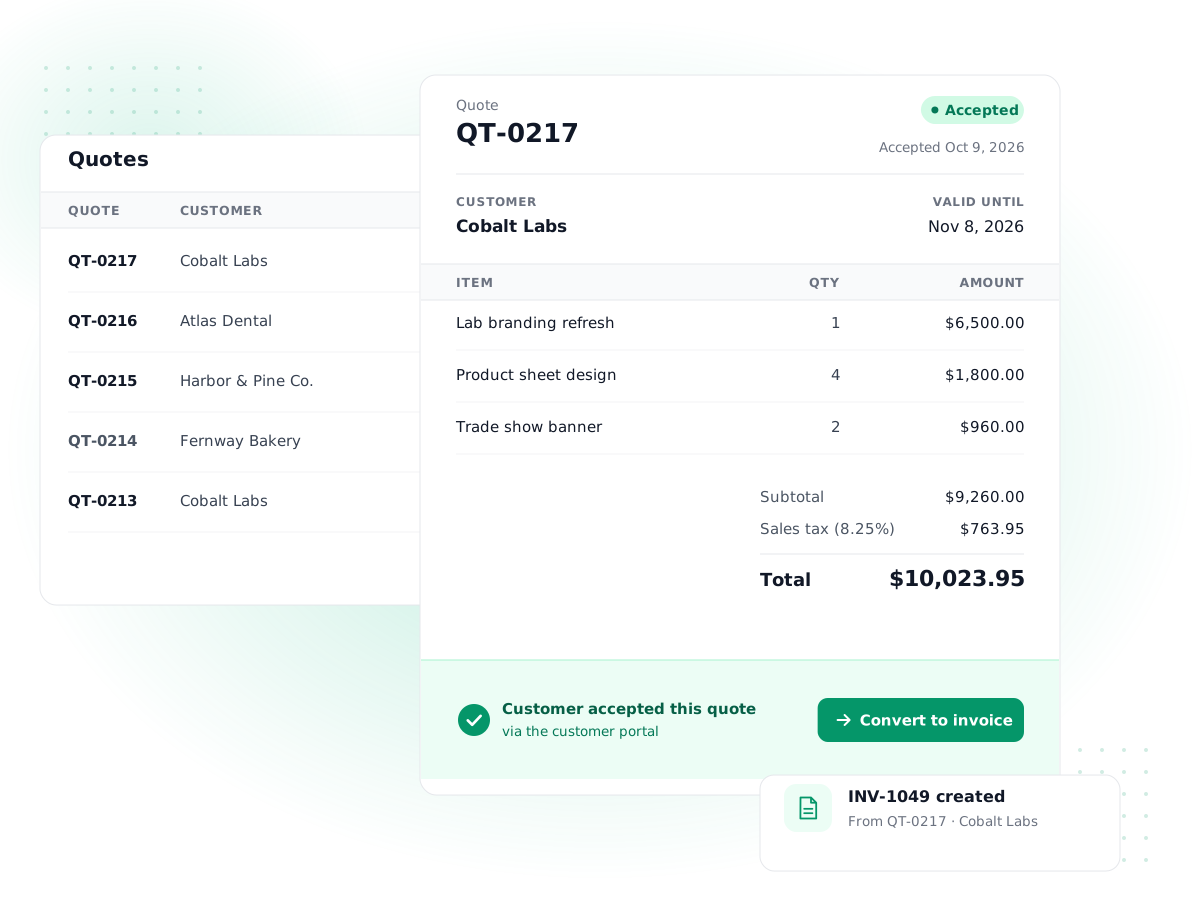
Quotes from your item catalog
Build quotes from the same products, services, prices and tax rates you invoice with, so the numbers always match.
Expiry dates that hold
Set how long a quote is valid. Once the expiry date passes, the client can no longer accept it in the portal.
Accept or decline online
Clients sign in to your branded customer portal, review the quote, download the PDF and accept or decline it.
One-click conversion
Turn an accepted quote into a draft invoice with every line, discount and tax carried over and the quote number as the order reference.
Branded PDFs and emails
Quotes use their own PDF template and email template, so they look like your business, not like a spreadsheet.
Clear quote statuses
See at a glance which quotes are draft, sent, approved, refused, expired or already invoiced.
How it works
- 1
Create the quote
Choose the customer, add items, quantities, discounts and tax, set an expiry date and add terms or notes.
- 2
Email it to your client
PilotLedger sends your quote email template with a link to the PDF and marks the quote as sent.
- 3
Client accepts in the portal
Your client signs in to the customer portal and accepts or declines. You can also mark the result yourself if they reply by email.
- 4
Convert to an invoice
Click Convert to invoice. A draft invoice is created with the quote's lines, ready to review and send.
PilotLedger is invoice quote software for small businesses that price work before they do it: designers, contractors, consultants, agencies and anyone else who sends a quote and waits for a yes. You write the quote once, your client accepts it online, and the same lines become an invoice without being typed twice. Because quotes live inside a full accounting system, the invoice that follows posts straight to your books.
Here is how quoting works in PilotLedger, step by step, and where it fits in the way you sell.
Quotes vs. estimates: what is the difference?
People use the words interchangeably, and PilotLedger treats them the same way. In everyday use:
- An estimate is a best guess at the cost, often used when the scope may change (a kitchen repair, a marketing campaign).
- A quote is a fixed price for a defined piece of work, usually valid for a set period.
Whichever you call it, the document has the same parts: your details, the customer, line items, taxes, a total, terms and an expiry date. In PilotLedger you create it under Sales → Quotes and decide in your own wording, on the PDF, whether it is a quote or an estimate. If you just need a blank form for a one-off job, our free estimate templates are a good start.
How to create and send a quote
A quote in PilotLedger is built the same way as an invoice, which is the point: anything you put on the quote can carry over.
- Choose the customer. Their address, email and currency come from the customer record.
- Add line items. Pick products or services from your item catalog or type a description, then set the quantity, unit price, any line discount and the sales tax rate.
- Set a discount on the whole quote if you offer one, as a percentage or a fixed amount.
- Set the quote date and expiry date. A 30-day validity is common; for materials with volatile prices you may want less.
- Add terms and notes. Notes are visible to the customer; internal notes are only for your team.
- Send it. PilotLedger emails the customer using your quote email template, with a secure link to the PDF, and marks the quote as sent.
Quote numbers follow your own numbering settings, and you can clone an old quote to start a similar one in seconds.
How clients accept quotes in the customer portal
On the Starter, Growth and Business plans, your clients get access to a branded customer portal. There they can see every quote and invoice you have sent them, download PDFs, and respond to a quote:
- Accept changes the quote to approved and records when it happened.
- Decline changes it to refused, and the client can add a reason, which is saved in the quote's notes.
A client can only respond to a quote that is sent and not past its expiry date. That protects you from someone accepting last spring's price after your costs went up. If a client replies by phone or email instead, you can update the status yourself.
Convert an accepted quote into an invoice
Once a quote is approved, the Convert to invoice step appears on the quote. One click creates a draft invoice that carries over:
| From the quote | On the new invoice |
|---|---|
| Customer and currency | Same customer and currency |
| Line items, quantities, prices, line discounts | Copied exactly |
| Tax rates and document discount | Copied exactly |
| Terms and customer notes | Copied |
| Quote number | Saved as the invoice's order number |
| Quote date | Invoice is dated today, due per the customer's payment terms (30 days if none) |
The quote then shows as invoiced and can't be converted again, so a double click never creates two invoices. You review the draft, change anything that shifted during the job, and send it. From there, everything in PilotLedger invoicing applies: partial payments, reminders and credit notes.
Billing a deposit on a quoted job
A common pattern is billing part of the quote upfront. Say you quote $4,800 to renovate an office and ask for 25% before you start. Convert the accepted quote to an invoice and send it. When the client pays the $1,200 deposit, record it as a partial payment; the invoice shows $3,600 still due. When you finish, record the rest and the invoice is marked paid.
If you prefer separate deposit and final invoices, edit the converted invoice to show the deposit only, then create the final invoice later.
Why invoice quote software beats separate tools
Quoting in a word processor and invoicing in another app works until you have a dozen open jobs. Then prices drift between the quote and the invoice, accepted quotes get forgotten, and nobody knows which work is approved but not yet billed.
Estimating and invoicing software that shares one item catalog and one customer list fixes that. In PilotLedger:
- A quote does not touch your books. It is a promise, not a sale, so it creates no accounts receivable and no revenue.
- The invoice it becomes does post to the ledger when sent: receivables, revenue and sales tax, using double-entry accounting.
- Your quote list doubles as a simple pipeline: filter by sent to see what is waiting on a decision, and by approved to see what is ready to bill.
If you are comparing quote software for small business, check whether the tool lets clients accept online, whether conversion is truly one click, and what happens to your books afterwards. You can compare PilotLedger's limits and plans on the pricing page.
Tips for quotes that get accepted
A good quote is clear enough that the client can say yes without a follow-up call. A few habits help:
- Itemize. Break the work into lines the client recognizes (design, development, testing) rather than one lump sum. It also makes partial invoicing easier later.
- State what is not included. Use the terms field for exclusions, revision limits and who supplies materials.
- Set a realistic expiry date. Fourteen to thirty days is typical. It creates a gentle deadline and protects you from cost changes.
- Price with your margin in mind. If you resell materials, our markup calculator shows the selling price for the margin you want.
- Follow up on sent quotes. Filter the quote list by sent each week and check in on anything older than a few days.
What quotes in PilotLedger don't do
- No e-signatures. Acceptance is a click in the portal, not a signed document.
- No deposit collection by card. Clients can't pay a deposit online; you record payments when they arrive.
- No portal on the Free plan. The portal starts on Starter ($14.99/month). On Free you can still create, email and convert quotes (up to 10 quotes a month) and mark acceptance yourself.
For the basics of what makes a clear quote or invoice, read our guide on how to make an invoice.
Quotes & Estimates: frequently asked questions
Can my clients accept a quote online?
Yes, on the Starter, Growth and Business plans. Clients sign in to your branded customer portal, open the quote, download the PDF and click Accept or Decline. Accepting marks the quote as approved; declining marks it refused and lets the client add a reason. On the Free plan, you can record the client's answer yourself after they reply by email.
How do I turn a quote into an invoice?
Open an approved quote and click Convert to invoice. PilotLedger creates a draft invoice with the same customer, line items, prices, discounts, taxes, terms and notes, and saves the quote number as the order number. The new invoice is dated today. Review it, adjust anything that changed during the job, and send it to the customer.
What happens when a quote expires?
Each quote can have an expiry date. After that date the client can no longer accept it in the customer portal, so nobody can lock in an old price by accident. You can still change the status yourself, or clone the quote, update prices and dates, and send a fresh one in a minute or two.
Do quotes affect my accounting reports?
No. A quote is an offer, not a sale, so PilotLedger does not post it to the ledger and it never appears on your Profit & Loss or Balance Sheet. Only when you convert it to an invoice and send that invoice does PilotLedger record accounts receivable, revenue and sales tax in your books.
Is a quote the same as an estimate in PilotLedger?
Yes. PilotLedger has one document type for both, found under Sales → Quotes. You can call it a quote or an estimate on your PDF template and in your email wording. Generally an estimate is an approximate price and a quote is a fixed price valid for a set time, but the workflow is the same.
Can I customize how my quotes look?
Yes. Quotes have their own PDF template and their own email template, separate from invoices. Edit them in Settings to add your company details and layout, and change the email subject and message using placeholders such as customer name and quote number, which PilotLedger fills in automatically each time you send a quote.
Try quotes & estimates in PilotLedger
Create your free PilotLedger account in under a minute. No credit card required.