Expense Tracking
Expense tracking software that keeps your books right
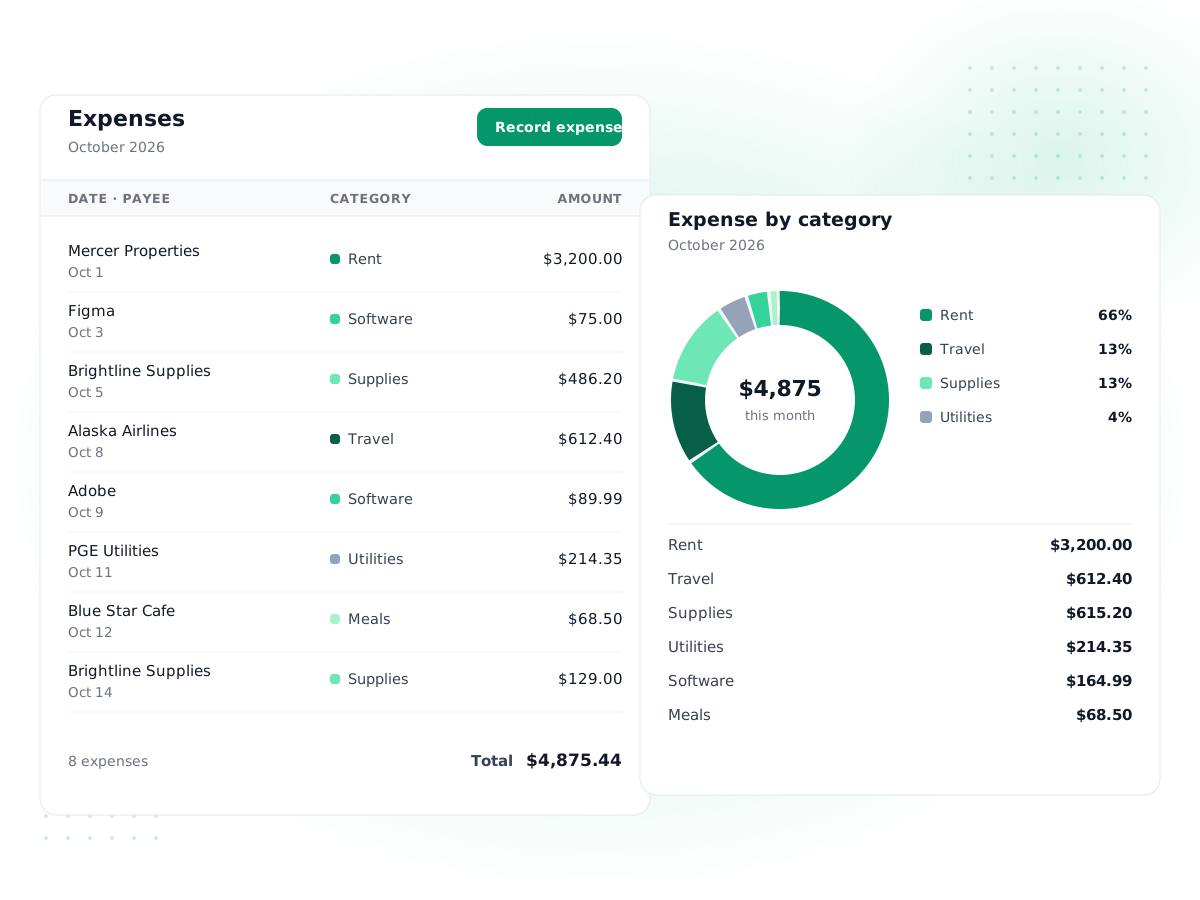
Record every business expense against the right account, approve it if your team needs sign-off, and mark it paid from a bank or cash account. Your profit and loss updates as you go.
Free plan available · No credit card required
Categorize to real accounts
Every expense is linked to an expense account in your chart of accounts, plus an optional category label like Travel or Software.
Save as paid in one step
For a coffee or a software subscription already paid, enter it and choose the bank account or cash it came from. Done.
Submit and approve
Team members can submit expenses for approval. Approving posts the cost to your books; paying it settles the balance.
Tax kept separate
Enter the tax amount on each expense and PilotLedger posts it to its own account, so it shows up correctly in the Tax Summary report.
Vendor and billable details
Link an expense to a vendor, add a reference and notes, and flag costs that are billable to a customer.
Expense by Category report
See what you spent per expense account for any period, including expenses, bills and journal entries, with each account's share.
How it works
- 1
Enter the expense
Add the date, amount, tax, vendor, expense account and an optional category, payment method and reference.
- 2
Save as paid, or submit it
If it is already paid, pick the bank account or cash it came from and save as paid. Otherwise save it as a draft or submit it for approval.
- 3
Approve and pay
An approver checks and approves it, which posts the cost. When it is reimbursed or paid, record the payment from a bank account.
- 4
Review your spending
Use the Expense by Category and Profit & Loss reports to see where money goes each month.
PilotLedger is expense tracking software for small businesses that want every cost recorded once, in the right place, and reflected in their accounts straight away. Instead of a spreadsheet you reconcile with your bookkeeping later, each expense you enter is tied to an account in your chart of accounts and, once approved or paid, posted to the general ledger with balanced debits and credits.
This page covers how to track business expenses in PilotLedger, how approvals and payments work, and what the product does not do, such as receipt scanning.
Why use expense tracking software inside your accounting
Tracking expenses has three jobs: knowing where your money goes, claiming every deductible cost at tax time, and keeping a clean record if anyone asks questions later. A standalone business expense tracker handles the first job. The other two need the expense to land in your actual books.
When expenses live in PilotLedger:
- Your Profit & Loss statement shows real costs without a separate import.
- Tax you paid on purchases is posted to its own account and appears in the Tax Summary report.
- Payments reduce the right bank account, so bank reconciliation has something to match against.
- Every change is recorded in the audit trail.
What you record for each expense
The expense form is short on purpose. Required fields are the date, amount and expense account; everything else is optional but useful:
| Field | Example | Why it matters |
|---|---|---|
| Expense date | Oct 3, 2026 | Decides which period the cost belongs to |
| Vendor | Delta Air Lines | Groups spending by supplier |
| Expense account | 6200 Travel | Where the cost lands on your P&L |
| Category | Client visit, Chicago | A free-text label for your own grouping |
| Amount and tax | $420.00 + $0.00 | Tax is posted separately for tax reports |
| Payment method | Credit card | Cash, check, bank transfer, credit card or other |
| Reference | Booking ABC123 | Receipt or confirmation number |
| Receipt link | Link to the file | Points to where you keep the receipt |
| Billable to customer | Acme Co. | Flags costs you plan to pass on |
Expenses can also be in a foreign currency on plans with multi-currency enabled. PilotLedger stores the exchange rate and posts the base-currency amount.
Two ways to record an expense
1. Save as paid. Most small-business expenses are already paid when you record them: a software subscription on the company card, parking, a box of printer paper. Enter the expense, choose where the money came from (a bank account or cash) and click Save as paid. PilotLedger posts the cost and the payment together, and the withdrawal appears in that bank account's transactions.
2. Submit, approve, then pay. When an employee pays out of pocket, or when your business wants a second pair of eyes on spending, use the approval flow:
- The employee creates the expense and submits it for approval.
- A user with approval rights reviews and approves it. Approval posts the expense: it debits the expense account (and tax, if any) and credits accounts payable, because the business now owes the money.
- When the business pays or reimburses it, you record the payment from a bank account. That debits accounts payable and credits the bank.
Drafts and submitted expenses can still be edited. Once approved, an expense is on the books; if it was entered in error, void it with a reason instead of deleting it. Who can create, approve and pay expenses depends on the roles and permissions you give each user.
Expense categories: accounts vs. labels
PilotLedger gives you two levels of grouping, and it helps to know the difference.
- The expense account is the accounting category. It comes from your chart of accounts (for example Rent, Software, Travel, Advertising) and decides where the cost appears on the Profit & Loss. You can add or rename accounts to match how your accountant wants to see things. Our guide to the chart of accounts shows a sensible starting list.
- The category is a free-text label for your own tracking, such as a project, trip or event name. It does not change the accounting.
A good rule: keep the number of expense accounts modest and stable, and use categories for detail that changes.
A simple monthly routine to track business expenses
Expense tracking works best as a habit, not a year-end project. A routine that takes most small businesses well under an hour a month:
- Weekly: enter the week's card and cash purchases, saving each as paid from the right account. Keep the receipt where your receipt link points.
- Weekly: approve any expenses your team submitted, so reimbursements are not left waiting.
- Monthly: pay or reimburse approved expenses, then reconcile each bank and card account to its statement. Anything on the statement that is missing in PilotLedger is an expense you forgot to record.
- Monthly: run Expense by Category for the month and compare it with the previous month. Unusual jumps are worth a second look.
- Quarterly: check the Tax Summary report before you file sales tax or estimate income tax.
Expenses vs. bills: which one to use
PilotLedger has both, and they serve different situations:
- Use an expense for a one-off cost, usually already paid or paid by an employee, with a single amount and account.
- Use a bill when a supplier invoices you with payment terms, several line items or stock you are buying. Bills support line items, due dates, partial payments and vendor credits. See bills and accounts payable.
Both feed the same reports, so your spending totals stay complete either way.
Reports that show where your money goes
Recording expenses is only useful if you look at them. These reports in PilotLedger's financial reports cover most questions:
- Expense by Category shows posted spending per expense account for a period, whether it came from expenses, bills or journal entries, with each account's share of the total.
- Profit & Loss puts those costs against your revenue to show net income.
- Tax Summary shows tax you collected on sales and tax you paid on purchases.
- Aged Payables includes approved expenses that are still unpaid, so reimbursements don't slip.
All reports can be exported for your accountant.
What PilotLedger expense tracking does not do
Being clear about limits saves you time:
- No receipt scanning or OCR. You type the expense in. You can paste a link to the receipt (for example, a file in your cloud storage), but PilotLedger does not read receipts or store uploaded images.
- No automatic bank feeds. Card and bank transactions are not pulled in automatically.
- No mileage tracking and no mobile app. PilotLedger runs in your browser.
- Billable expenses are a flag, not an automatic charge. Add them to the customer's next invoice yourself.
If receipt capture is a must, tools such as Wave Pro or QuickBooks Online are stronger there; our Wave alternative and QuickBooks alternative pages compare them fairly. If you want a simple, accurate business expense tracker that is also your full accounting system, start on the Free plan and check pricing when you need more users.
Expense Tracking: frequently asked questions
Can PilotLedger scan receipts?
No. PilotLedger does not scan receipts or read them with OCR, and it does not store uploaded receipt images. Each expense has a receipt link field where you can paste the address of a receipt stored elsewhere, such as a cloud storage folder, plus a reference field for the receipt or confirmation number. You enter the amount, tax and account yourself.
How do I record an expense I already paid?
Create a new expense, fill in the date, amount, tax and expense account, then choose where the money came from, a bank account or cash, and click Save as paid. PilotLedger posts the expense and the payment in one step and adds the withdrawal to the bank account's transactions, ready for reconciliation.
Can employees submit expenses for approval?
Yes. A user can create an expense and submit it for approval. Someone with approval permission then reviews and approves it, which posts the cost to the books and records the amount owed in accounts payable. When the business reimburses the employee, you record the payment from a bank account and the expense is marked paid.
What is the difference between an expense account and a category?
The expense account comes from your chart of accounts, such as Travel or Software, and decides where the cost appears on your Profit & Loss. The category is an optional free-text label for your own grouping, such as a project or trip name. Reports by account follow the accounting; categories help you search and sort.
Does PilotLedger import expenses from my bank automatically?
No. PilotLedger has no automatic bank feeds, so transactions are not pulled from your bank. You record expenses as they happen, or enter bank transactions in the bank account and assign each one to an expense account. Statement-based bank reconciliation then confirms nothing is missing or recorded twice.
Which report shows my spending by category?
The Expense by Category report shows posted spending per expense account for any date range, including expenses, vendor bills and journal entries, with each account's share of the total. For the full picture against income, use the Profit & Loss report. Both are available in Reports and can be exported for your accountant.
Keep exploring
Try expense tracking in PilotLedger
Create your free PilotLedger account in under a minute. No credit card required.